Showing posts with label Azure. Show all posts

08 April 2012

How to access Azure WCF Endpoint with CRM plugin

CRM plugin only support add service reference on run-time, which means we have to bind and generate the classes using code behind whenever we want to access it.

We can use the following sample code to create the binding in code behind.
BasicHttpBinding myBinding = new BasicHttpBinding();
myBinding.Name = "ARV.MyService";
myBinding.Security.Mode = BasicHttpSecurityMode.None;
myBinding.Security.Transport.ClientCredentialType = HttpClientCredentialType.None;
myBinding.Security.Transport.ProxyCredentialType = HttpProxyCredentialType.None;
myBinding.Security.Message.ClientCredentialType = BasicHttpMessageCredentialType.UserName;
EndpointAddress endPointAddress = new EndpointAddress("http://eea5f8cbdbc749b0bcea2b6250cbae11.cloudapp.net/Myservice.svc");
MyServiceClient client = new MyServiceClient(myBinding, endPointAddress);
client.sendSMS();

29 February 2012

Migrating SQL Database to SQL Azure

Microsoft SQL provides serveral options for users to migrate their on-premises instance of SQL database to SQL Azure. In this post, I will use the simplest method (generate script) to prepare script for SQL Azure. Before we begin, it is good to know the limitation of SQL Azure compare to on-premises instance type of SQL, we can found the full list at MSDN here.

One of the key concern is you have to use SQL server 2008 R2 version, SQl 2008 does not support the target database to be SQL Azure.

Navigate to the database you wish to migrate. Mouse right click, select task , then generate scripts.

A wizard screen called "generate and publish script" will pop up. Select your object and define the script location. Key thing here is click the advance button.
Inside the advance option;
Set "script for the database engine type" to SQL Azure Database
Set "Convert UDDTs to Base types" to True.
Set "Types of data to script" to schema and data 
Finsih...
Now, execute the scripts in SQL Azure management portal, you should able to see your data in the cloud :)

01 January 2012

MSCRM2011 integration with Windows Azure (AppFabric) - Part 1

As Microsoft steps into the Cloud service with CRM 2011, Windows Azure platform AppFabric Service Bus provides an end-to-end solution option for us to integrate with CRM 2011 Online. It enable the data that has been processed as part of the current MSCRM operation to posted to the bus. Futher more, it provides a secure channel for communicating CRM run time data to external cloud applications. This is useful in keeping CRM systems and others data source synchronized.

Diagram below shows the how the AppFabric serve as a middle man:
Service bus messages are received at an endpoint using: (Detail explanation can be found on the SDK)
  • Queued
  • One-way
  • Two-way
  • REST
After a long summary on what AppFabric can do, lets see how to configure it. In this part 1 section, I will used CRM 2011 Online + Azure AppFabric as an example with step by step screen explanation:

Note: Microsoft Windows Azure upgraded ACS to version 2 on April 2011, for compatible checking, read the detail in this article.

First of all, we need to have CRM2011 account, Windows Azure account and CMR2011 Plugin registration tool... (You can also signup for free trial 30 days for CRM2011 & 3 months Windows Azure platform free trial, refer my previous post)

Step 1: Open the CRM 2011 Online in browser,navigate to the Developer resources screen from setting tab. Download the Certificate file and remember your Issuer Name. [We need to use this value in later stage!]

Step 2: Login to your Windows Azure Platform portal. change to Service bus, access control and caching page. Click the new ribbon button on top to create a new subscription service bus. [CRM will connect to this bus later]

Step 3: System will prompt you for namespace value, region and service you want to create. [Namespace must be unique, you can use the check button to verify. In my case, I used "EastOceanDevelopmentBox"]

Step 4: Wait few minutes for the Azure platform to create your service, you will see the status turn to Active. On the right hand site of the portal, from the properties section, notice that the ACS version is version 2, and there is a default key you will need to refer during the plugin registration stage for service endpoint.
Click on the view button you will see the similar screen as below: [Default key required on plugin registration stage!]

Step 5: Open a precompiled CRM2011 Plugin Registration Tool. Select the "Register New Service Endpoint" option.

Step 6: In the service end point details screen.
Fill name for this service.[It will display in CRM system job screen]
Fill in the solution namespace with the one we created in step 3. [EastOceanDevelopmentBox]

Fill in the Path. [Your service bus URI, example: https://eastoceandevelopmentbox.servicebus.windows.net/RemoteService]
Choose the contract you want and click the save and configure ACS button.

Step 7: In the ACS configuration screen, Paste the default key in step 4 as the Management Key
Browse the certificate we downloaded earlier. Paste the issuer name, all can get from CRM developer resource. Click Configure ACS.
You will see something similar as screen below.

 Step 8: On the service endpoint detail page, click save and verify. Then close.
If everything configure nicely without error,  a new system event record should appear in the CRM system job view with the name I key in earlier "CRM 2011 Online" status succeeded. Refer screen below.
Hooray! Now the CRM is connected to Azure and we can run our listener program to capture the context values.

I will try to post the part 2 ASAP, for part 2, I will demo how to register step with service endpoint and the different type of contract interaction that can use.

Cheers...

31 December 2011

Important security update for ASP.NET (MS11-100)

Microsoft published an important security update to improve protection on vulnerability in ASP.NET Could Allow Denial of Service.
Detail of the information about the update is Here
For Window Azure cloud platform and CRM online, Microsoft already patched the system for you.
Take note for the update action if you are using on premises system.

28 December 2011

Working with ServiceConfiguration file in Azure Cloud

Recently I have been working heavily on CRM2011 + Azure platform, just want to share some of the quick tips for those plan to move their application into Cloud!
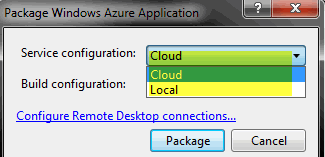
You will notice some extra file in your VS2010 solution when you added the Azure web role project, 2 configuration files included which differentiate by the "Cloud" & "Local". It give us the flexibility to deploy our solution base on different environment. For example my case I'm using different DB.


In order to configure the values, right click properties brings us into the setting page that allows developer to add the key into different configuration files.

Always remember to select the service configuration that you want to use base on your deployment. To retrieve the value dynamically on run time after deployment, refer below:
Microsoft.WindowsAzure.ServiceRuntime.RoleEnvironment.GetConfigurationSettingValue("SQLConnection")

12 December 2011

3 months free trial for Azure platform

You can now sign up for the free trial Windows Azure, 750 small compute hours/month is more than enough for developer to run "Hello world" service 24*7 for 3 months :)

Of course, there is no obligation to purchase at the end of the free trial, but you need to provide your Live Id and credit card for verification purpose. According to Microsoft, spending limit will applied on trial account for your peace of mind.

Azure free trial
  • Compute: 750 hours of a Small Compute Instance* (can run one small instance full-time or other sizes at their equivalent ratios)
  • Storage: 20GB with 50k Storage transactions
  • Data Transfers: 20GB outbound / Unlimited inbound data transfer
  • Relational Database: 1GB Web Edition SQL Azure database
  • Access Control: 100k transactions
  • Service Bus: Free through March 31, 2012
  • Caching: 128MB cache

31 October 2011

Invalid object name 'sys.configurations' while connecting to SQL Azure


If you connect the SQL Azure from SQL Management Studio (Database Engine) by using the Full qualified server name given by Azure, you will hit some invalid object name type of error alert.
Workaround/ solution:
  1. Close the connection dialog
  2. Click on the "New query"
  3. It will prompt similar connection dialog, this will be working fine.
*Remember to set your database name by clicking the option button in connection dialog
screen. :)